Troubleshooting
"Invalid token — get a new one at hikerapi.com"
The stored token was rejected (HTTP 401). Copy a fresh token from your HikerAPI dashboard and paste it again. Tokens can be revoked from the same page.
"Quota exhausted — top up at hikerapi.com"
Your balance hit zero mid-run (HTTP 402). Top up at hikerapi.com, then re-run the job — already-downloaded files are skipped, so you only pay for what's missing.
"Not found on Instagram (private profile or deleted post)"
For a post link, the post may be deleted or belong to an inaccessible private account. A private profile lookup should still show its public avatar; its posts, reels, stories, highlights, Followers and Following lists remain unavailable.
Downloads fail with "CDN host … is not allowed"
A safety check: the app only downloads from official Instagram CDN hosts (cdninstagram.com, fbcdn.net). If you see this error on a normal post, the media URL likely expired between fetching and downloading — just retry; a fresh URL is minted per attempt.
Profile data loads, but Instagram previews do not
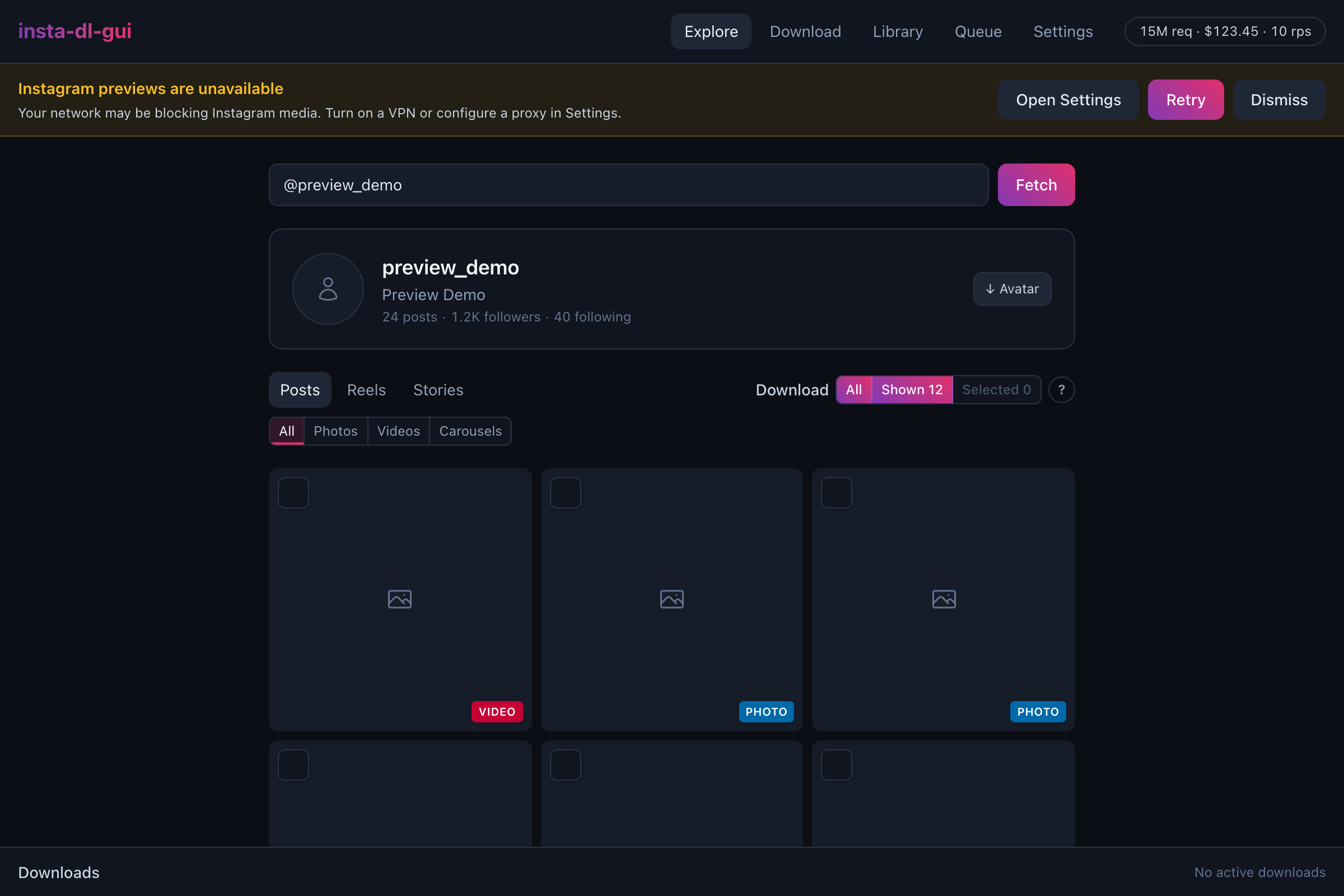
Instagram profile data can load while avatars and post thumbnails fall back to neutral placeholders. When two distinct previews fail within 10 seconds, the app shows one global warning instead of reporting every failed image.
- Open Settings jumps directly to the Network proxy card.
- Retry reloads every currently mounted preview after you change the connection.
- Dismiss hides the warning for the current app process only.
On a direct connection, turn on a VPN and press Retry. If your network needs a shared proxy, configure it in Settings so both HikerAPI requests and Instagram media use the same route. If a proxy is already configured, verify its scheme, hostname, port and credentials, press Apply proxy, then retry; use Clear proxy when the connection should be direct.
The warning cannot distinguish a local block from a proxy problem or a temporary upstream/CDN failure. It is preview-only: it does not block or alter profile metadata or download behavior, and it never displays failed media URLs, the HikerAPI token or proxy credentials.
The network proxy is unreachable or rejects authentication
Open Settings and verify the proxy scheme, hostname, port and credentials. The app accepts HTTP, HTTPS, SOCKS5 and SOCKS5H proxy URLs, including credentials in the URL. Press Apply proxy again after correcting it; the saved proxy is used for new HikerAPI requests and Instagram CDN/media downloads without restarting the app.
If the connection should work without a proxy, press Clear proxy and retry the operation. This restores explicit direct routing for new operations and ignores proxy environment variables. Downloads already in progress keep the proxy they started with, so cancel and restart an affected download if needed.
Settings shows only a credential-redacted proxy hint, but the complete authenticated URL remains in the app's restrictive local config file. Never paste the raw proxy URL into an issue report; remove its username and password first.
A download saved fewer files than expected
Transient network errors and CDN server errors are retried automatically, up to three attempts per file. Permanent errors such as an expired URL, invalid media type, disk-space limit or cancellation are not retried. If at least one file was saved, the job finishes with the exact saved count; fix the reported cause if present and re-run to fetch the rest.
macOS: "Apple could not verify…" / «Файл не был открыт» (Gatekeeper)
The app is not yet signed with an Apple Developer ID or notarized, so macOS blocks the first launch. Two ways through:
GUI: dismiss the dialog with Done/Готово (don't press "Move to Trash"), then open System Settings → Privacy & Security and click Open Anyway.
Terminal:
Both only affect the first launch; after that the app opens normally.
macOS keeps asking for access to Downloads in Library or Queue
Library asks once per configured download folder during an app session. Completed Queue details perform one preview-access check for the result instead of asking once per file. Choose Allow to load local photo and video previews. The app only reads cataloged media inside the configured download folder; it does not move, edit or delete them.
If you chose Don't Allow, Library and Queue keep placeholders instead of opening a dialog for every file. Open System Settings → Privacy & Security → Files and Folders, enable access to Downloads for insta-dl-gui, then return to Library and press Retry previews or reopen the completed Queue job.
Changing the download folder causes one new access check for that folder. Installing a new release without Apple Developer ID signing may also make macOS ask again.
Windows SmartScreen blocked the installer
Click More info → Run anyway. Expected until code signing lands.
Stories downloaded nothing
Stories only exist while they're live (24 h). If @instagram shows none, there simply are none right now.
Nothing helps?
Open an issue with the exact error text and your OS.